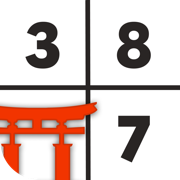
Slide to select lets you choose a cell and its digit in one motion: press an empty cell, slide your finger into the part of the board that stands for the digit you want, and lift. With the usual method you tap a cell, move down to a keypad and tap a small key. With slide to select, your finger stays on the board the whole time. This page explains how it works in Sudoku Royale, why it is quick, and how it fits with the other ways to enter digits.
How slide to select works
The trick is the layout. A sudoku board already has nine 3x3 boxes, numbered in reading order: 1 top left, 2 top middle, 3 top right, down to 9 bottom right. Sudoku Royale uses those boxes as the keypad. Each digit sits over the box of the same number.
- Press the empty cell you want to fill. You feel a light tap of haptic feedback.
- Slide your finger. Once it moves a short distance, the picker opens with a firmer tap, and the digit you are pointing at is whichever box your finger is over. Heading for a 3? Slide into the top-right box. A 5 is the center box.
- Lift to place the digit. If you change your mind, slide to a different box before lifting. Lift off the edge of the board and nothing is placed.
You do not need to slide at all if you prefer tapping. Tap an empty cell and the same picker appears over the board with the nine digits in their boxes. Tap the digit you want. It is the classic cell-first method with much larger buttons.
Why it is quick
Fitts's law, from the psychologist Paul Fitts in 1954, says the time to hit a target depends on how far away it is and how big it is. Far and small is slow. Near and large is fast.
A standard phone keypad fails on both counts. Nine keys squeezed into one row are each narrower than a thumb tip, and they sit below the board, so every placement means a trip down and back up. With digits laid over the board, each target is the size of a whole 3x3 box, and your finger is already on the board. Near and large.
The other gain is attention. With a keypad, your eyes leave the cell to find the right key. With slide to select, the cell and the digit are in the same place, so you keep looking at the puzzle.
The positions never change. After some practice you stop reading the picker and just move: 1 is up and left, 9 is down and right. How long that takes varies from person to person, but it comes from ordinary play. You do not need to drill it.
Slide to select compared with other input methods
| Method | Actions per digit | Where the digits are | Available in Sudoku Royale |
|---|---|---|---|
| Slide to select | 1 gesture | Over the board, one per box | Yes |
| Tap cell, tap digit on the board | 2 taps | Over the board, one per box | Yes |
| Tap cell, tap keypad | 2 taps | Small keys below the board | No |
| Number first (digit stays selected) | 1 tap per cell, plus switching digits | Number row below the board | Yes |
| Keyboard (web) | Click or arrow, then a key | Physical keyboard | No |
Tap cell, then tap a keypad
The method most apps use. It is easy to learn and works fine, but every digit costs a round trip from cell to keypad, and small keys invite taps on the neighbor. If you tap the wrong key in most apps, you then need an erase or undo to fix it.
Number first
Choose a digit first, then tap every cell where it goes. This is excellent when you are placing the same digit several times, such as the opening sweep through 1 to 9. Sudoku Royale has it too: the row of 1 to 9 keys under the board. Tap a key and the digit stays selected until you tap it again. Hold a key and it is selected only while your finger is down. Slide along the keys and the board lights up every cell that already holds each digit in turn. The picker and the number row are never on screen at the same time, so you always know which method you are using. Our number first vs cell first guide covers when each one wins.
Keyboard and handwriting
On a computer, clicking a cell and typing a digit is quick. Some iPad apps accept handwritten digits with Apple Pencil, which feels like paper but is slower, since the app has to read each stroke. Neither applies to a phone held in one hand.
Try Sudoku Royale
The classic sudoku you know, without the ads, the pop-ups, or the clutter. A fresh Daily Challenge, unlimited practice with no timer, and technique drills. When you want a rush, race 2 to 18 players on one shared grid.
Download Sudoku Royale: Free on iOSNotes with slide to select
Turn on Notes, and the same press, slide and lift writes a small candidate instead of an answer. Pick a digit that is already noted and it is removed. For several candidates in one cell, there is a two-finger method: hold the cell with one finger and tap or swipe digits with the other. Each digit toggles as you reach it. When you later place a digit, its notes disappear from the same row, column and box. For when to use notes at all, read sudoku pencil marks.
What happens when you pick the wrong digit
Sudoku Royale only accepts correct digits. If you slide to a wrong one, the cell shakes and stays empty, and you try again. That is why the app has no erase or undo button: nothing wrong ever lands on the board. In Practice, a mistake costs nothing but the shake.
One-handed play
Because the digits are on the board, your thumb does not have to travel to a keypad. Press a cell near your thumb, slide a short way, lift. That keeps phone sudoku comfortable on a train or with a coffee in the other hand. The board itself sits in the middle of the screen, so the farthest top corner is still the longest reach. See the one-handed sudoku guide for grip and Reachability tips.
Getting used to it
- Start by tapping. Tap a cell, look at where each digit sits, and tap it. This teaches the layout.
- Slide the easy ones. The corners (1, 3, 7, 9) and the center (5) are the easiest to hit without looking. Slide those first and keep tapping the rest.
- Add the edges. 2, 4, 6 and 8 sit in the middle of each side. Once they feel natural, you are sliding everything.
- Mix in number first. When one digit goes in several cells, use the number row instead.
Practice mode is the place to learn, since there is no time limit. Once the gesture is automatic it also helps in the optional live matches, where every second counts. For a full tour of the controls, read how to play sudoku on iPhone. For a wider comparison, including web keyboards, see sudoku input methods compared.
Frequently Asked Questions
What is slide to select in sudoku?
Slide to select is a way of entering a digit in one motion. In Sudoku Royale you press an empty cell, slide your finger into the 3x3 box whose position matches the digit you want (1 top left, 5 center, 9 bottom right), and lift to place it.
Is slide to select faster than tapping a keypad?
Usually, yes. The digits are laid over the board, so your finger does not travel down to a keypad, and each target is the size of a whole 3x3 box, far bigger than a keypad key. How much faster depends on the player.
Can I cancel a slide if I pick the wrong digit?
Yes. Before you lift, slide to a different box to change the digit, or slide off the edge of the board and lift to place nothing. If a wrong digit is submitted, Sudoku Royale rejects it and the cell stays empty.
Does slide to select work for notes?
Yes. With Notes turned on, the same gesture adds a candidate, or removes it if it is already there. You can also hold a cell with one finger and tap or swipe digits with another to add several notes quickly.
Which sudoku app uses slide to select?
Sudoku Royale, a free, ad-free sudoku app for iPhone and iPad. It also supports tapping digits on the board and number-first entry from a 1 to 9 number row.