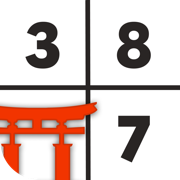
To play sudoku on iPhone, install a sudoku app, pick a difficulty, then fill each empty cell by selecting the cell and choosing a digit from 1 to 9. Every row, column and 3x3 box has to end up with each digit exactly once. The rules are the same as on paper. What changes on a phone is the handling: how you enter digits, how you write notes, what happens when you make a mistake, and how the screen looks at 11pm in bed. This guide walks through all of it, using Sudoku Royale as the worked example, since it is free, has no ads, and runs every control described here.
New to the puzzle itself? Read how to play sudoku and the rules of sudoku first, then come back for the phone part.
Step 1: Pick a puzzle
Most apps give you a daily puzzle plus an unlimited supply at several difficulty levels. In Sudoku Royale you have two main choices:
- Practice. Unlimited puzzles at Easy, Medium, Hard, Expert, Master and Extreme. Easy and Medium are open from the start. Each harder level unlocks after you solve a few puzzles at the level below it, so you arrive at Expert with the skills Expert needs. There is no time limit, and Practice works with no connection at all. See Practice mode.
- Daily Challenge. One puzzle per day, the same for everyone, with a daily leaderboard and streaks. See the Daily Challenge guide.
If you are unsure where to start, solve two or three Easy puzzles to learn the controls, then move up. Our difficulty guide explains what separates the levels.
Step 2: Enter digits (two ways)
Phone sudoku apps use one of two input orders, and the good ones let you use both. We compare them in depth in number first vs cell first. Here is how each works in practice.
Cell first: tap the cell, then the digit
This is the classic method. In Sudoku Royale, tapping an empty cell opens a picker that covers the board, with each digit sitting over the 3x3 box of the same number: 1 over the top-left box, 5 over the center, 9 over the bottom-right. Tap the digit you want and it goes in.
There is a faster version of the same idea. Press an empty cell and, without lifting your finger, slide into the box whose position matches the digit, then let go. To place a 7, you finish the slide over the bottom-left box. Once the positions are in your fingers, placing a digit is a single flick. More on that in slide to select.
Number first: choose the digit, then tap cells
Under the board is a row of keys from 1 to 9. Tap a key and that digit stays selected. Every empty cell you tap now gets that digit, until you tap the key again to turn it off. This is the quick way to finish off a digit when you can see three places it goes.
You can also hold a key instead of tapping it. The digit is then selected only while your finger stays down, which suits two-handed play: one thumb holds the 4, the other taps the cells. Slide along the row of keys while holding and the board lights up where each digit already sits, one digit at a time. That is a fast way to scan the grid.
Try Sudoku Royale
The classic sudoku you know, without the ads, the pop-ups, or the clutter. A fresh Daily Challenge, unlimited practice with no timer, and technique drills. When you want a rush, race 2 to 18 players on one shared grid.
Download Sudoku Royale: Free on iOSStep 3: Use notes (pencil marks)
Notes are the small candidate digits you write in a cell when you are not sure yet. Turn on the Notes toggle under the number keys, and any digit you pick is written as a small note instead of an answer. Pick the same digit again and the note is removed.
- Paint notes across cells. With Notes on and a digit selected on the number keys, drag your finger across empty cells to write that note into each of them.
- Two-finger notes. With Notes on, hold a cell with one finger and tap or swipe digits with another to add several notes to that cell quickly.
- Automatic clean-up. When you place a digit, that digit is removed from the notes in the same row, column and box.
Sudoku Royale does not fill in candidates for you. You write your own notes, which is where most of the learning happens. How much do people use them? In Practice, players take notes on about 46% of puzzles, from 18% on Easy to 84% on Expert. For when and how to mark candidates, read sudoku pencil marks explained.
Step 4: Know what happens when you get one wrong
Apps differ a lot here. Some let a wrong digit sit on the board until you check. Others flag it in red. In Sudoku Royale a wrong digit never lands at all: the cell shakes, a short message appears, and the cell stays empty for another try. A correct digit is locked in for good.
That design has a side effect worth knowing. There is no eraser and no undo button, because there is nothing wrong on the board to erase. Notes are the only thing you take back, and you do that by picking the same note again.
How much a mistake costs depends on the mode:
| Mode | What a mistake does |
|---|---|
| Practice | Nothing beyond the shake. Mistakes are unlimited and counted on the result screen. |
| Daily Challenge | Adds 30 seconds to your time. After the third mistake the run is unranked, and you can still finish it for your streak. |
Step 5: Use highlighting to scan
Selecting a cell shades its row, column and box, so you can see at a glance which digits it can not be. Press and hold a filled cell and every copy of that digit lights up across the board. That behavior is a setting called Highlight Same Number, on by default. Selecting a digit on the number keys also lights up where it already sits. When all nine copies of a digit are placed, its key dims, so you know it is finished.
Step 6: Get unstuck
In Practice, if you go about a minute and a half without a correct placement, a light bulb appears. Tap it for a tip that points you to the technique that works next, instead of simply revealing a digit. Tips need a connection. If you keep getting stuck on the same kind of position, the Dojo drills train one technique at a time, such as hidden singles and pointing pairs.
Step 7: Set it up the way you like
The settings worth knowing in Sudoku Royale:
- Appearance. System, Light or Dark. System follows your iPhone, so the board goes dark when your phone does.
- Music and Sound Effects. Two separate switches, so you can keep the tap sounds and drop the music, or go fully silent.
- Highlight Same Number. Turn off the hold-to-highlight if you prefer to scan without help.
- Daily Drop. An optional notification for the new Daily Challenge, off unless you turn it on.
The app plays in portrait on iPhone. It also runs on iPad, in any orientation.
Playing with one hand
On a modern iPhone the board is rarely the problem. The keypad is: most apps put nine small keys under the grid, so every placement is a thumb trip from the cell down to the keys and back up. With a train strap or a coffee in the other hand, that trip is what makes phone sudoku tiring. An app is comfortable in one hand when:
- You can pick digits on the board, where your thumb already is.
- The targets are big. Nine keys in one row are each narrower than a thumb tip, so near-misses happen, especially at the edges.
- Toggles sit at the bottom, near the thumb, not in a top corner.
- A slip is cheap. It should be easy to cancel before it counts, and a wrong digit should not sit on the board.
Sudoku Royale has no separate one-handed mode or left-hand layout. It does not need one: the timer is at the top, the board in the middle, and the number keys and Notes toggle at the bottom, and the box-sized picker and slide gesture keep your thumb on the grid. If you start a slide toward the wrong box, keep sliding to the right one before you lift, or slide off the board to cancel. A wrong digit is rejected anyway, and in Practice it costs nothing.
How to hold the phone
- Rest the phone on your little finger. Let the bottom edge sit on your little finger with the other fingers along the back. Your thumb then moves freely across the lower two-thirds of the screen.
- Use Reachability for the top. On iPhones without a Home button, swipe down on the bottom edge of the screen to pull the top half down. Turn it on in the Settings app under Accessibility, Touch, Reachability. It helps with the timer and the back button, which sit highest.
- Slide instead of stretching. The far corner box is the hardest reach. Start on a cell near your thumb and let only the slide travel.
- Switch hands between puzzles. Thumb fatigue is real in long sessions, and with a symmetric layout switching costs nothing.
Two hands when you have them
On the sofa, two thumbs are faster. Hold a number key with one thumb, tap cells with the other, then let go, and nothing stays switched on. For notes, turn Notes on, hold a cell with one finger and tap digits with the other to add several candidates at once.
Playing comfortably on a phone
- Offline. Practice and the Dojo work in airplane mode, which matters in tunnels and on flights. The Daily Challenge needs a connection to download the day's puzzle.
- On a commute. Turn off Music and Sound Effects in settings to play silently, and pick Practice or the Daily, which both fit a short ride.
- No ads. Sudoku Royale has no ads, no in-app purchases and no subscription, so nothing interrupts a puzzle. See sudoku apps without ads.
Other ways to play sudoku on iPhone
If you want to compare before you commit, these are the main options:
| Option | Cost | Ads | Good for |
|---|---|---|---|
| Sudoku Royale | Free | None | Daily, unlimited practice, technique drills, both input orders |
| Good Sudoku | Paid | None | Guided hints and automatic candidates |
| Sudoku.com | Free or subscription | In the free version | A very large puzzle library |
| Brainium Sudoku | Free or paid upgrade | In the free version | A simple, minimal layout |
| A website in Safari | Free | Varies | Occasional play without installing anything |
For a checklist of features to compare and a ranked list, see the best sudoku apps.
Frequently Asked Questions
How do you play sudoku on an iPhone?
Install a sudoku app, choose a difficulty, and fill each empty cell with a digit from 1 to 9 so every row, column and 3x3 box contains each digit once. You enter digits either cell first (tap a cell, then a digit) or number first (select a digit, then tap cells). Sudoku Royale supports both, free and with no ads.
How do I add notes or pencil marks in a sudoku app?
Most apps have a notes or pencil toggle. In Sudoku Royale, turn on Notes under the number keys and every digit you pick is written as a small candidate. Pick it again to remove it. With a digit selected you can drag across cells to write the same note in several places.
Is there an undo button in Sudoku Royale?
No. Sudoku Royale only accepts correct digits, so a wrong digit never lands on the board and there is nothing to undo or erase. Notes are removed by picking the same note again.
Can I play sudoku on iPhone without internet?
Yes. Sudoku Royale's Practice mode ships with puzzles on the device and works in airplane mode, and so do the Dojo drills. The Daily Challenge needs a connection to download each day's puzzle, and Practice tips need a connection too.
Does Sudoku Royale have a left-handed or one-handed mode?
No. There is no separate mode or mirrored layout. The standard layout already puts the number keys and Notes toggle at the bottom, and digits can be picked directly on the board by tapping or sliding, which works with either hand.
How do I reach the top of the screen with one hand?
Use iPhone Reachability: turn it on in Settings, Accessibility, Touch, then swipe down on the bottom edge of the screen to bring the top half within reach.
Does Sudoku Royale have a dark mode?
Yes. Under Appearance you can choose System, Light or Dark. System follows your iPhone's own setting.